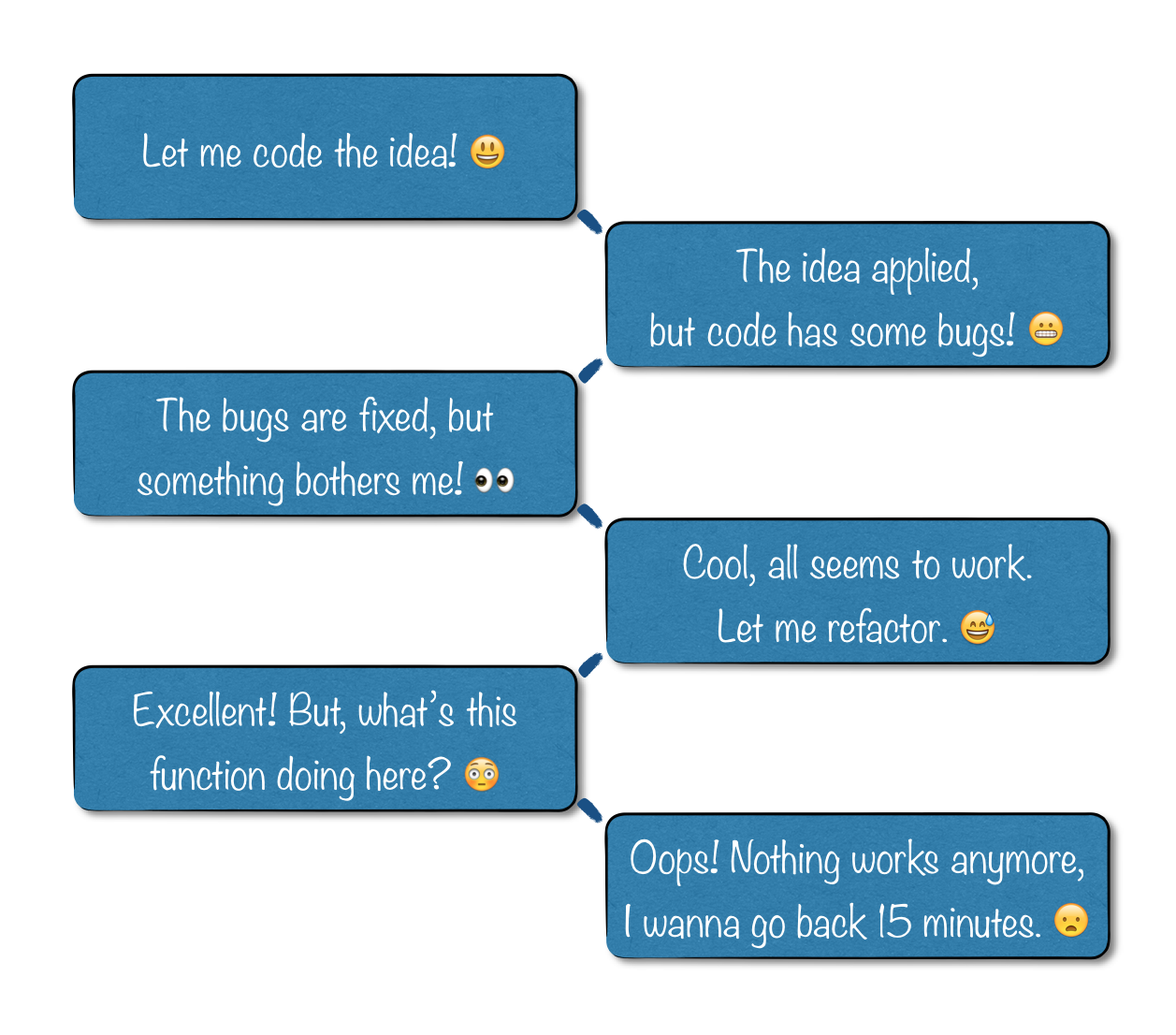
The blocks in the picture above describe a situation my friends and I get into many times while coding. Of course, we use version control but then not every small change is worth a team commit: a commit with a message that meaningfully represents the change, and the whole effort of making that commit.
Earlier, while experimenting with code, I used to comment some sections of the code, even make copies of code files. That all created more chaos rather than help me write neat and brief code and experiment at the same time. Then I started keeping a personal backup repository of my code and made commits there for small changes, but then again it was lot of manual work. Eventually, it gave birth to the Live Version or LV.
You can definitely benefit from LV if you code in any computer language or write text documents (like latex files) on regular basis. Most visual git clients like Source Tree let you see the differences between each commit.
LV is a shell script, and there are a few helping scripts in the system. If you are not comfy with command line interface, you may want to get some help in setting the system up for you. Once it is setup, you can use it without command line.
Features
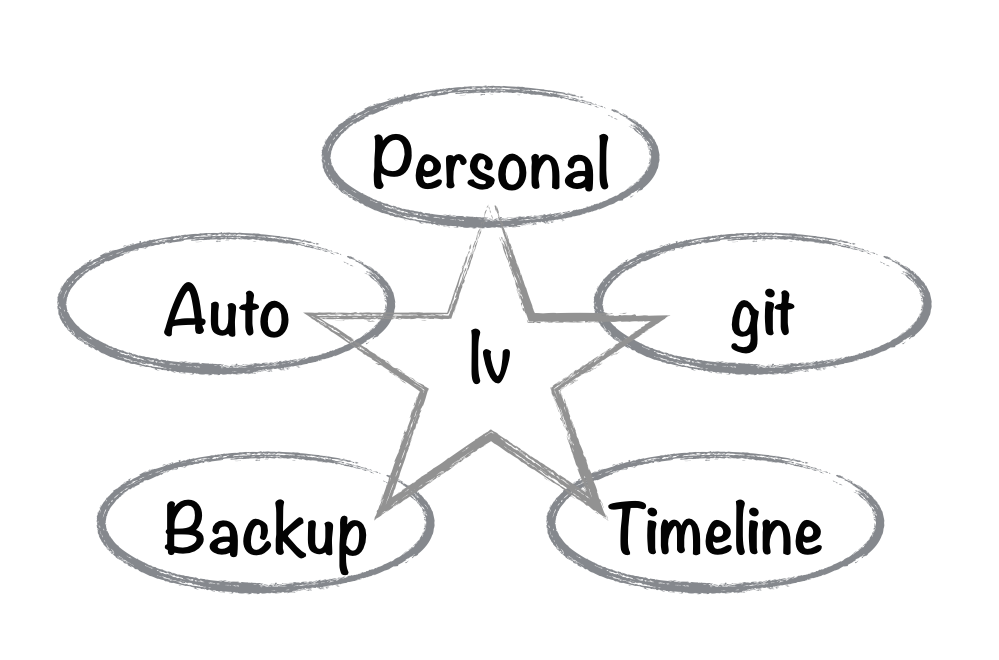
Personal: Live Version is made for your own personal use. It is for you and you only, you can do all play with your work, and that is being recorded in the Live Repository for you to look back in need. Your team mates have no business in your Live Repository. Your team commits are not impacted with Live Version.
Automatic: Once you setup LV for a specific folder, the versioning is alive. There is no manual labor involved in maintaining the backups.
Git: Yes, it uses git. But you can use any versioning system for your code in your source code folder. Or, no versioning system at all, like I do for some small home projects. I count on LV to do the versioning for me.
Backup: It is a backup system, a separate folder contains Live Repository. It does not in any way manipulate your source folder. It is also an automatic backup of your code, so you always know that you have an updated backup copy of your code.
Timeline: LV maintains a timeline for you. You can use LV to track how much time you spent on recent coding. Just check the timestamps on commits of a day, to get an idea. It also helps you in making a meaningful team commit message when you can look thru all the changes made in certain time frame.
Peace of Mind: Knowing that all my changes are versioned gives me immense peace of mind. It gives me freedom to try out bizarre ideas and experiment more. I do not comment code lines anymore, I do not make zip copies my source folder anymore. With Live Version, it is super easy to recover a recent piece of work.
Overview
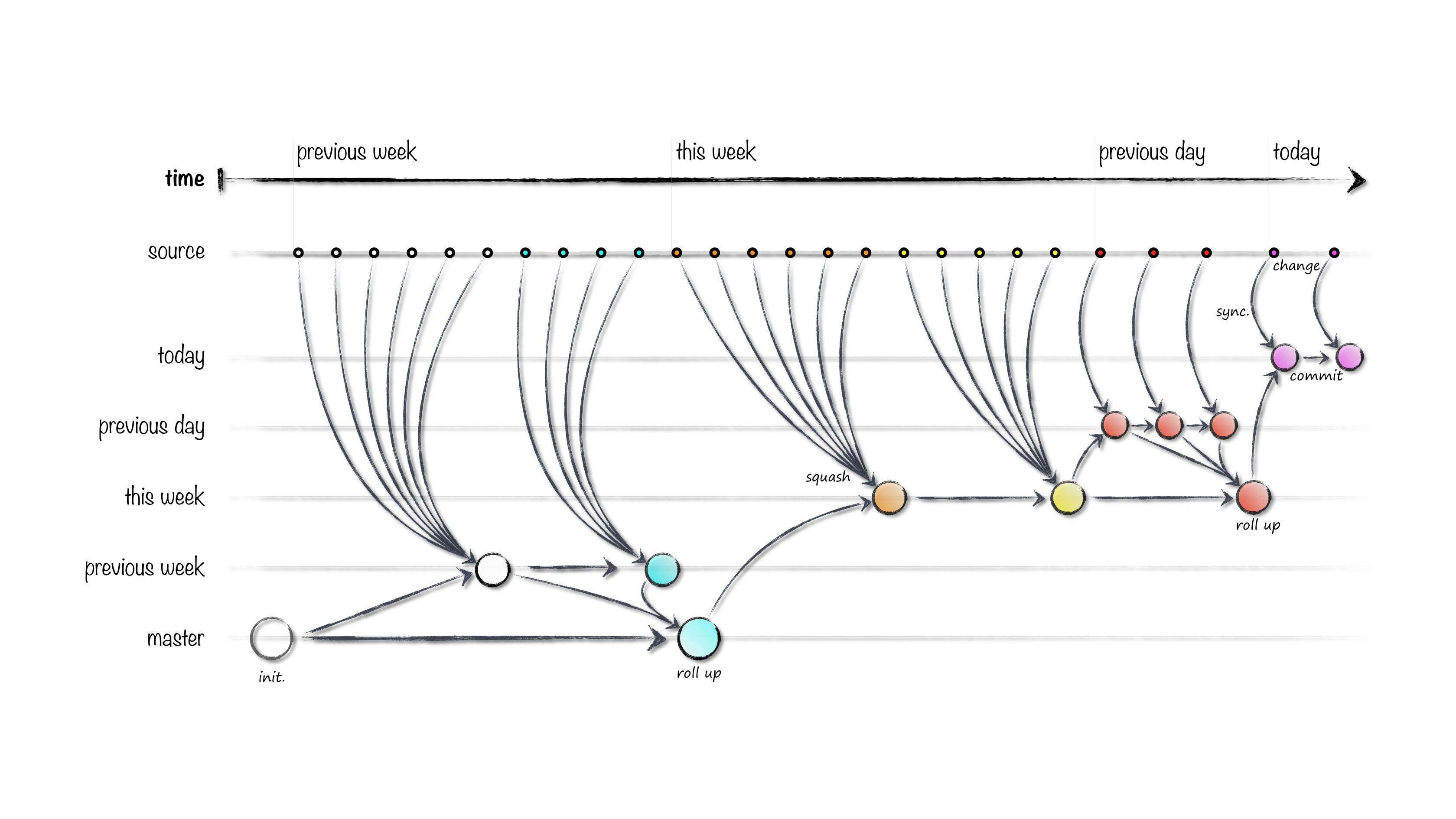
Live Version extensively uses git branching and squashing to keep your live repository lean and up to date. When we use LV, we give a source folder and a destination folder. Source folder has your code and destination folder is where live repository would be maintained. In the picture above, the line with source represents source folder over time and small dots represent granular changes. These dots can be further classified as changes belonging to a certain day based on the color of the dots. The lines, today, previous day, this week, previous week and master represent git branches in Live Repository.
When you make any change on your source folder, it is automatically synchronized with the live repository. That change is then recorded as a commit. Depending on how many times you update files in the source, you can have from zero to hundreds of commits in a day. All these commits belong to the branch of that day and are marked with time-stamp. When in need, you can go back to any of these commits and recover your precious piece of work.
Next day, when you start working (i.e. making changes to your source folder), all these changes from the previous day are squashed as a single change into the current week’s branch. The branch for the previous day is still there, you can refer back to it if needed. In addition, this week’s branch has a new commit that represents the combination of all the changes from the previous day. In other words, it represents how your work looked like after the last change was made on the the previous day.
If the this next day marks the beginning of a new week, all daily squashes of the previous week would be squashed into master branch showing how your work looked like at the end of the previous week. In this way, you’ll always have granular changes from today and the the previous day. You’ll have ‘end of day’ snapshots for the current week and the previous week; and ‘end of week’ snapshots for all the weeks.
Walkthrough
The Overview section gave a big picture of how LV works. To understand it better, lets walk through together over a concrete example where Sam starts to use lv for his project on Sep 9th, 2014:
First Day: After setup, lv is first used on Sep 9, 2014 (week 37):
3 changes are made on the same day. That is when the live repository would look like this:
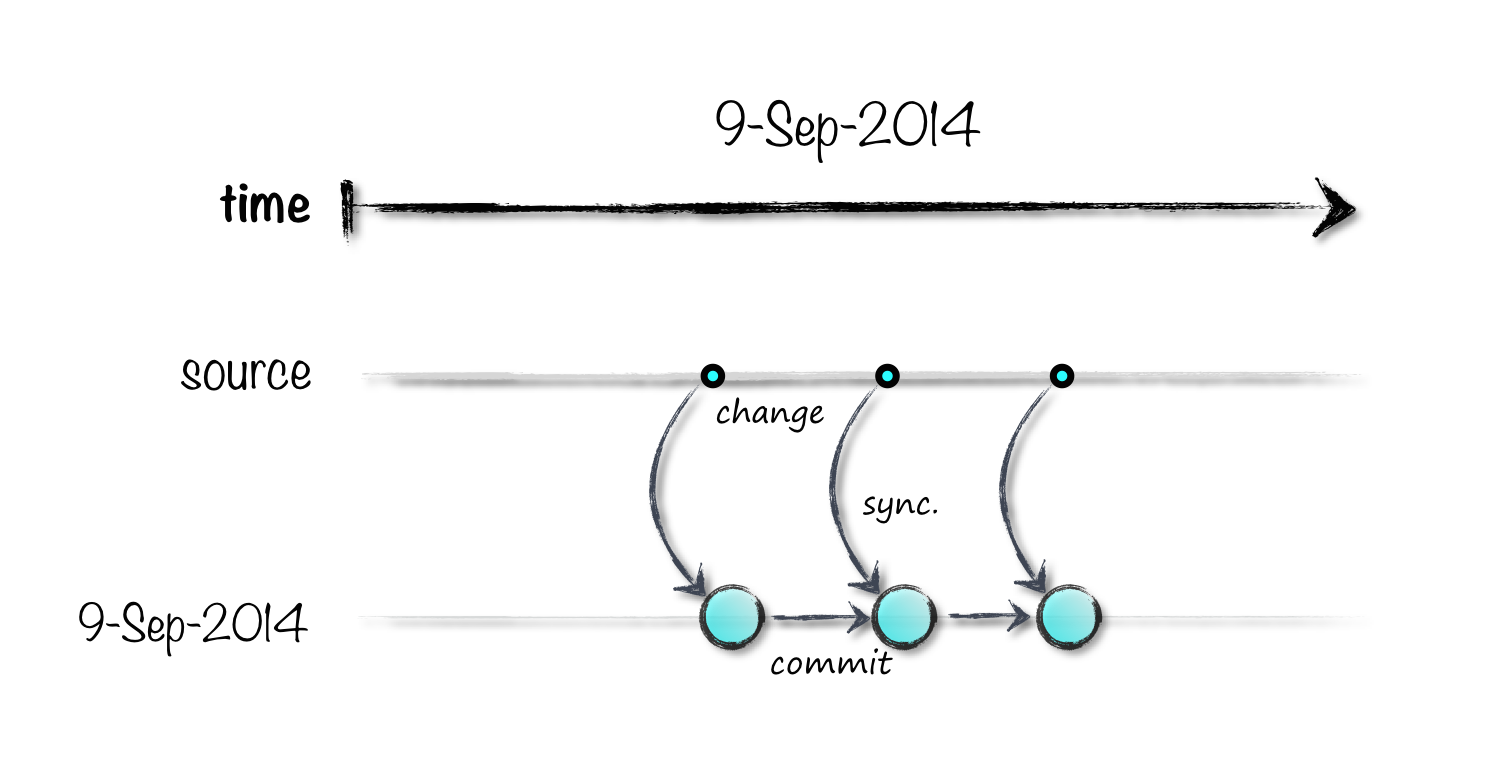 In this context, each change is synchronized and committed on 9-Sep-2014 branch.
Another day: More changes are made in the source on say, 10-Sep-2014; live repository looks like this:
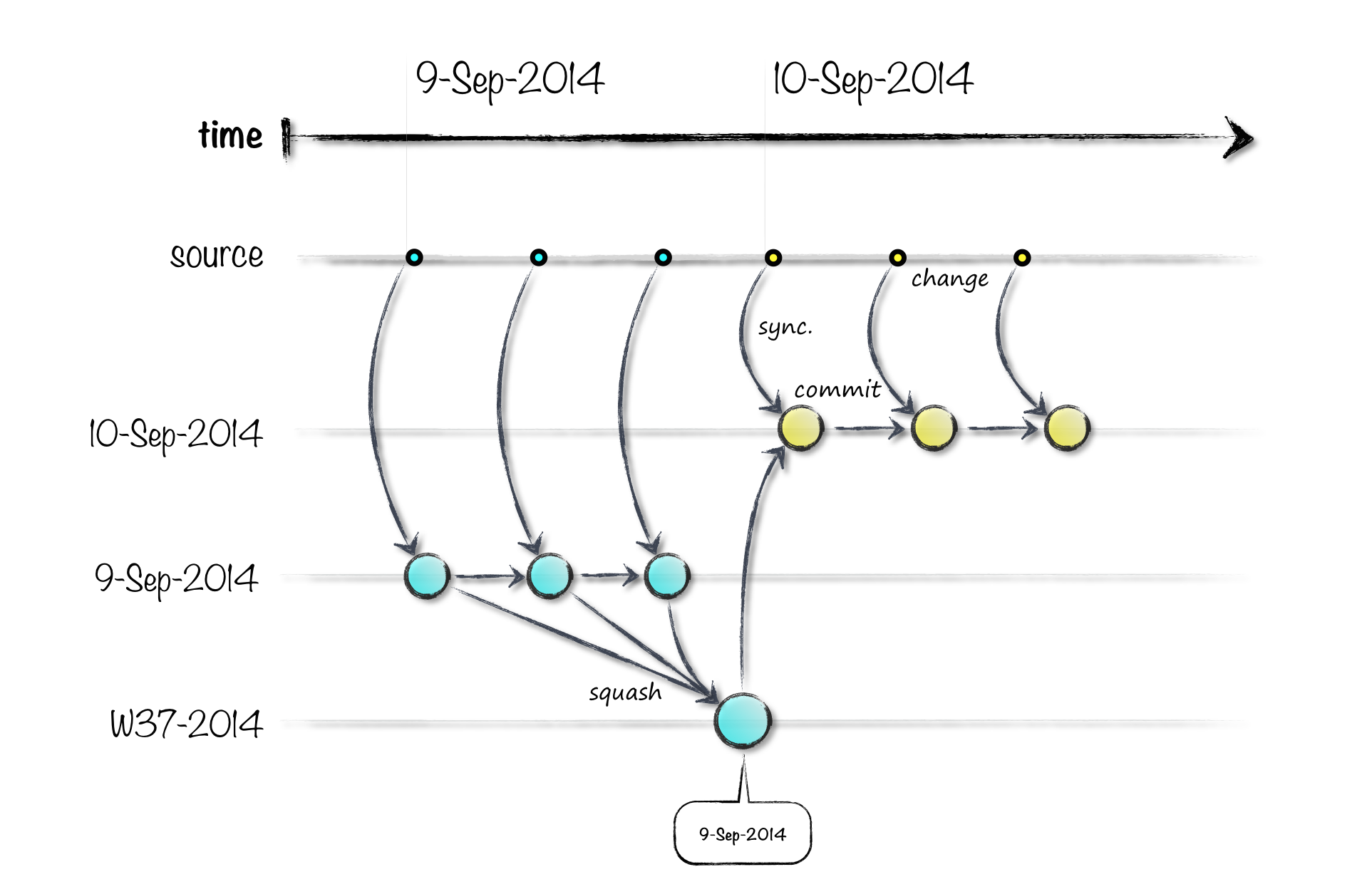
when the system recognized change in the day (date), it created a squash commit on W37-2014 branch, representing a combined change for 9-Sep-2014 branch. LV also created another branch for the day, i.e. 10-Sep-2014. All changes on the day are recorded on 10-Sep-2014 branch.
Yet another day: Let’s say that the next day Sam works on the source is Sep 13th. There are already 2 branches in live repository representing daily granular changes. Let’s see what happens in two steps:
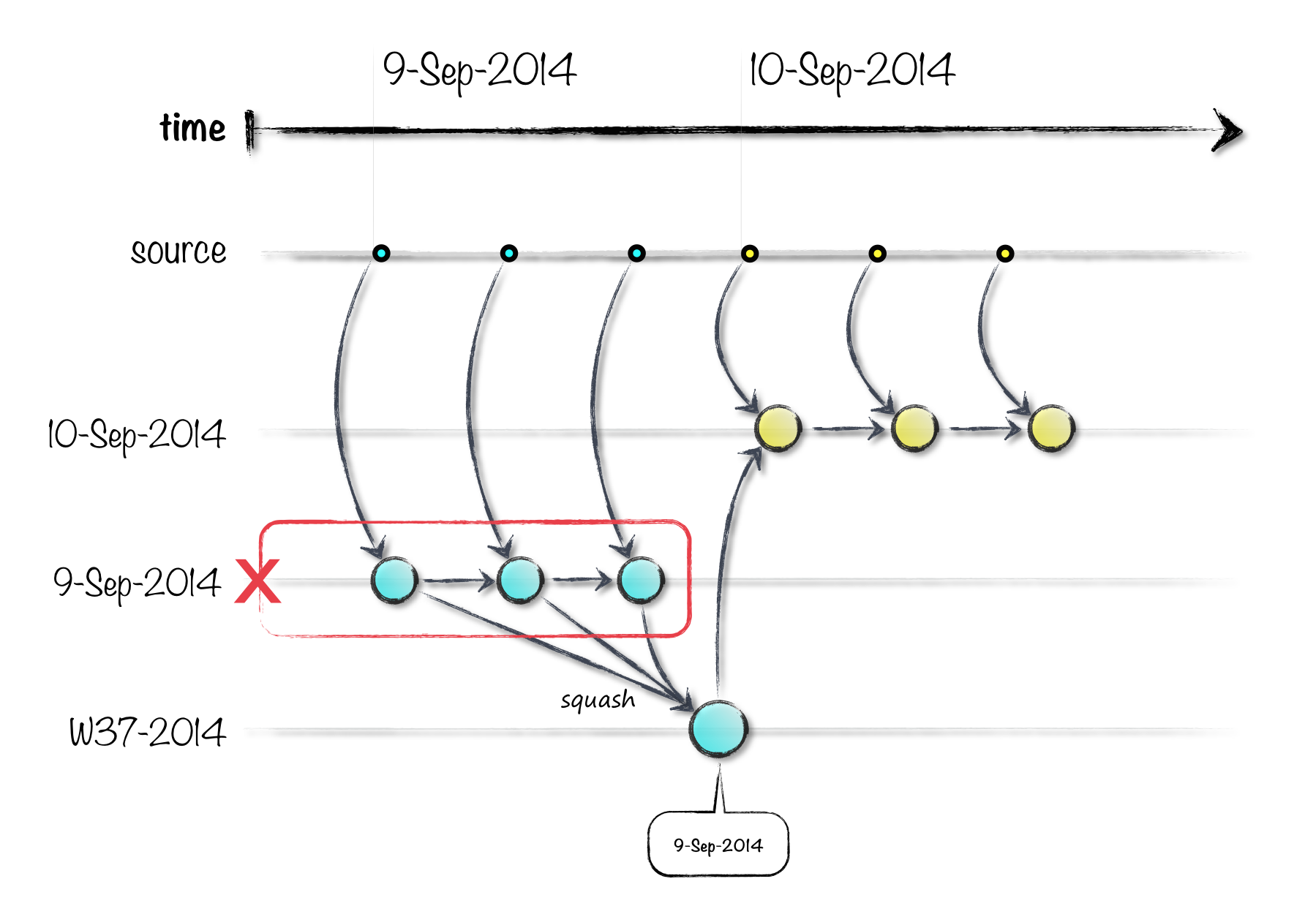 Step 1: Granular changes of 9-Sep-2014 are disposed off, i.e. the branch is deleted. However, the squash commit on W37-2014 branch still remains, preserving ‘end of day’ state of Sep 9th. And then:
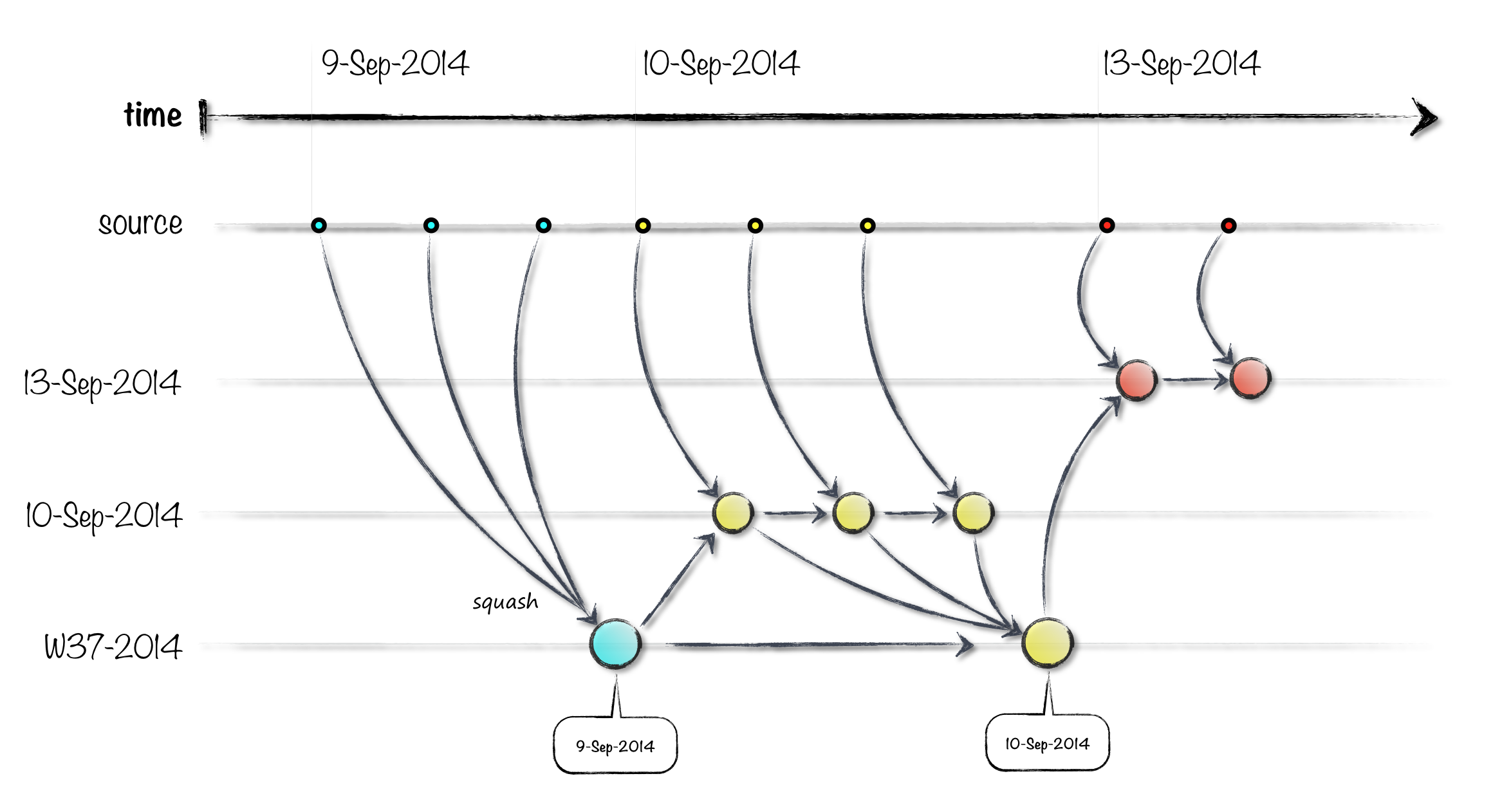 Step 2: A branch is created for Sep 13th and all changes of the day are recorded there.
What’s next?: What’ll happen when Sam works next week on Sep 15th? Following steps describe the situation:
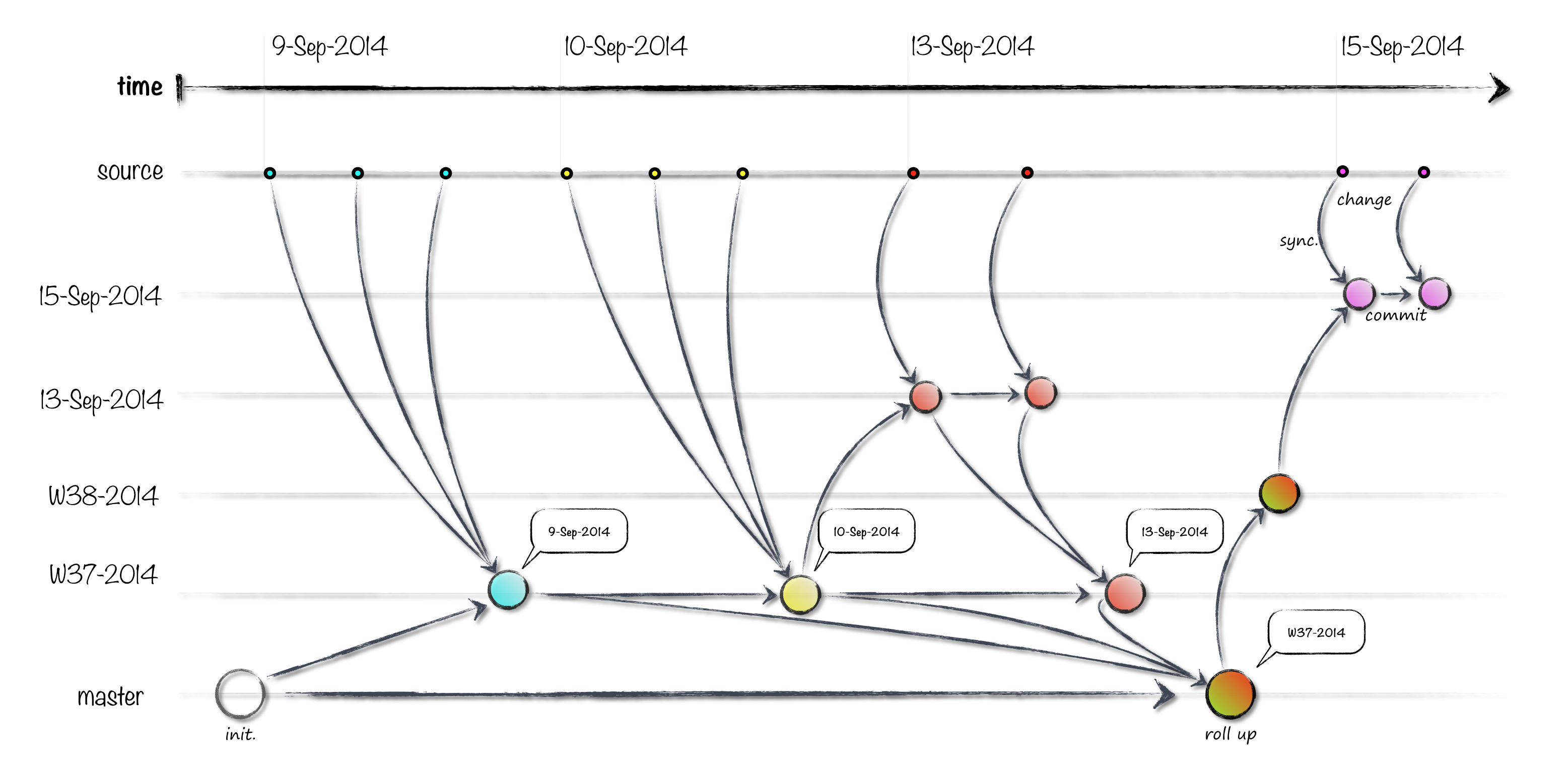
Step 1: Branch 10-Sep-2014 is deleted.
Step 2: All changes from branch 13-Sep-2014 are squashed on the W-37-2014 branch.
Step 3: Since it’s a change in the week, all changes on the previous week, i.e. W-37-2014 branch are squashed on the master branch.
Step 4: A new branch for the current week, i.e. W-38-2014 is spawned from the master branch.
Step 5: A new branch, 15-Sep-2014 is spawned from W-38-2014 branch.
Step 6: All changes on 15th Sep are synchronized and committed to the branch 15-Sep-2014.
Summary: Live Version keeps weekly snapshots on master branch permanently. It keeps current week and previous week branches which have daily snapshots respectively. In addition, it maintains two branches: one for today and one for previous day for recovering granular changes.